


Guide: MyINFINITI App Setup & Features
Everything You Need to Know About the MyINFINITI App
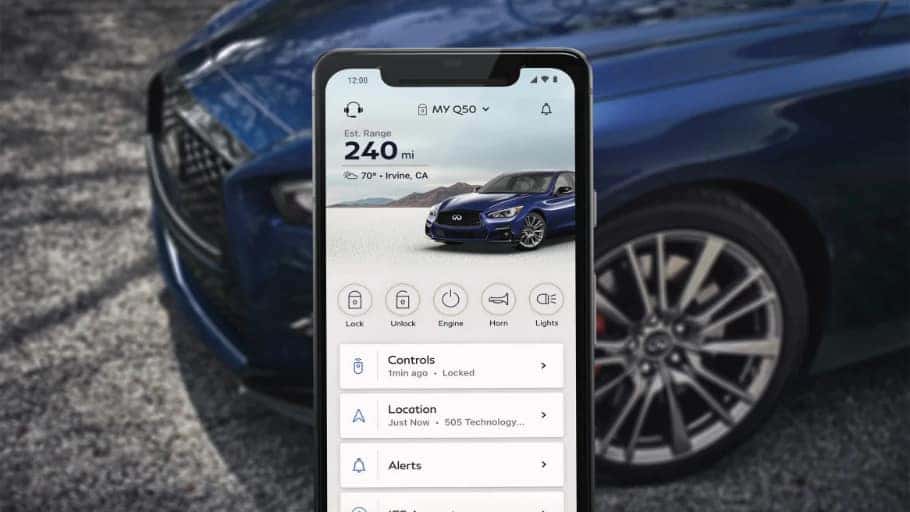
In the fast-paced world we live in, convenience is key. Imagine being able to locate your vehicle, whether it’s an INFINITI Q50 or a spacious QX80, in a crowded parking lot with just a tap on your smartphone, or starting your car remotely to ensure it’s at the perfect temperature when you step inside. With the MyINFINITI app setup, these features and more become a reality, enhancing your driving experience and providing peace of mind for any INFINITI, from the agile Q60 to the versatile QX60.
How Can I Set Up the MyINFINITI App?
The MyINFINITI setup is essential for INFINITI users as it provides a new level of luxury and convenience for INFINITI users in Mahwah, NJ. This allows them to effortlessly connect their vehicle, be it a QX50 or a QX55, to the world.
Features like remote door locks or engine start to enhance the driving experience, offering peace of mind and convenience for models like the Q70 or QX30.
- Download the App: Search for “MyINFINITI” in the App Store or Google Play Store and download it.
- My INFINITI login: Open the app, follow the prompts to create an account, and verify your email address.
- Add Your Vehicle: Use your vehicle identification number (VIN) to add your INFINITI vehicle, such as a Q50, to the app.
- Activate Services: Activate features like remote door lock or engine start that require a subscription or activation, applicable to all models like the QX60 and QX80.
Connect Your Phone to Your Vehicle:
INFINITI users in Ridgewood, connecting your phone to your vehicle (Q60, QX50, etc.) is simple. Turn on your phone’s Bluetooth, and follow the app’s instructions to pair it with your vehicle.
To connect your phone to your vehicle using the MyINFINITI app, follow these steps:
- Turn on Bluetooth on your smartphone.
- Launch the MyINFINITI app on your smartphone.
- Sign in to your MyINFINITI account using your username and password.
- Locate and select the “Vehicle Settings” or “Connect Vehicle” option in the app’s menu.
- Pair Your Phone: Follow the on-screen instructions to pair your phone with your vehicle. This typically involves selecting your vehicle (e.g., Q70, QX55) from a list of available devices and confirming the pairing request on both your phone and your vehicle’s infotainment system.
- Once the pairing process is complete, you should see a confirmation message on both your phone and your vehicle’s display.
- Test the connection by using one of the app’s features, such as remote door lock/unlock or remote engine start. If the feature works, your phone is successfully connected to your INFINITI vehicle, be it a QX30 or any other model.
Note: If you’re using InTouch Service features, such as remote door lock or engine start, you’ll need a paid or trial subscription for your INFINITI QX80 or Q50.
Ramsey INFINITI can enroll you in a trial, or you can enroll yourself in the app or contact My INFINITI app support.
MyINFINITI App Features
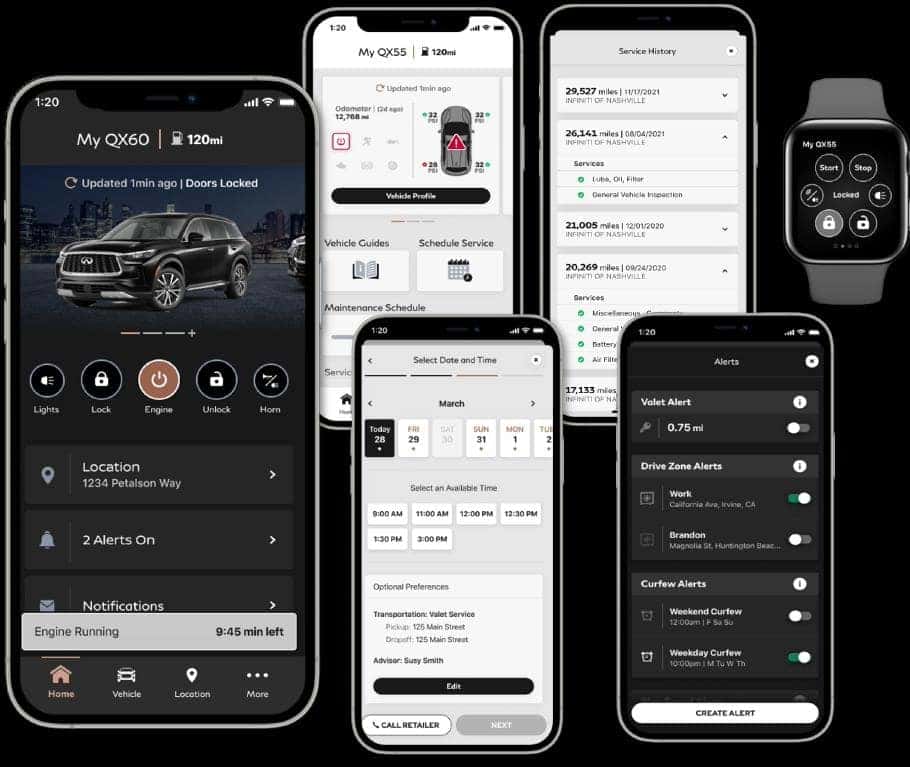
Experience the innovative features of the MyINFINITI app in Wyckoff, where convenience meets luxury on the road for every INFINITI model, from the Q60 to the QX60.
MyINFINITI app InTouch:
This feature allows the integration of the MyINFINITI app with the InTouch system in INFINITI vehicles like the Q70 and QX50. This integration allows users to access and control various features of their vehicle remotely through the app, enhancing convenience and connectivity.
My Car Finder:
Locate your vehicle, such as a QX55 or QX30, remotely using the MyINFINITI app and Owner Portal map. This feature is useful when you’re in a crowded parking lot or need to find your vehicle quickly. Simply open the app and view your vehicle’s GPS location on the map.
Stolen Car Locator:
In the unfortunate event that your INFINITI vehicle (Q50, QX80, etc.) is stolen, the Stolen Vehicle Locator feature can help you pinpoint its exact location. This information can be crucial for recovering your vehicle and aiding authorities in their investigation.
Remote Door Lock/Unlock:
Control your vehicle’s locks from a distance using the MyINFINITI app or Owner Portal. This feature allows you to securely lock or unlock your doors on any INFINITI, like the Q60 or QX60, without needing your keys. It’s convenient for situations where you need to access your vehicle quickly or want to ensure it’s locked.
My INFINITI App Remote Start:
Start your vehicle remotely using the MyINFINITI app to return it to a comfortable temperature before you enter, whether it’s an INFINITI Q70 or QX50. This feature is especially useful during extreme weather conditions, allowing you to warm up or cool down your vehicle in advance.
Remote Horn & Lights:
If you’ve forgotten where you parked your INFINITI QX55 or QX30, this feature can help you locate your vehicle quickly. By tapping a button in the app, your vehicle’s lights will flash and the horn will beep, making it easier to find in a crowded parking lot.
Remote Horn & Lights:
If you’ve forgotten where you parked your INFINITI Q50 or QX80, this feature can help you locate your vehicle quickly. By tapping a button in the app, your vehicle’s lights will flash and the horn will beep, making it easier to find in a crowded parking lot.
My INFINITI App Wifi-Hotspot:
This feature allows you to turn your INFINITI vehicle, such as a Q60 or QX60, into a mobile hotspot, providing internet connectivity for devices within the vehicle. This feature can be useful for passengers who need to stay connected while on the go, such as accessing emails, browsing the internet, or streaming content.
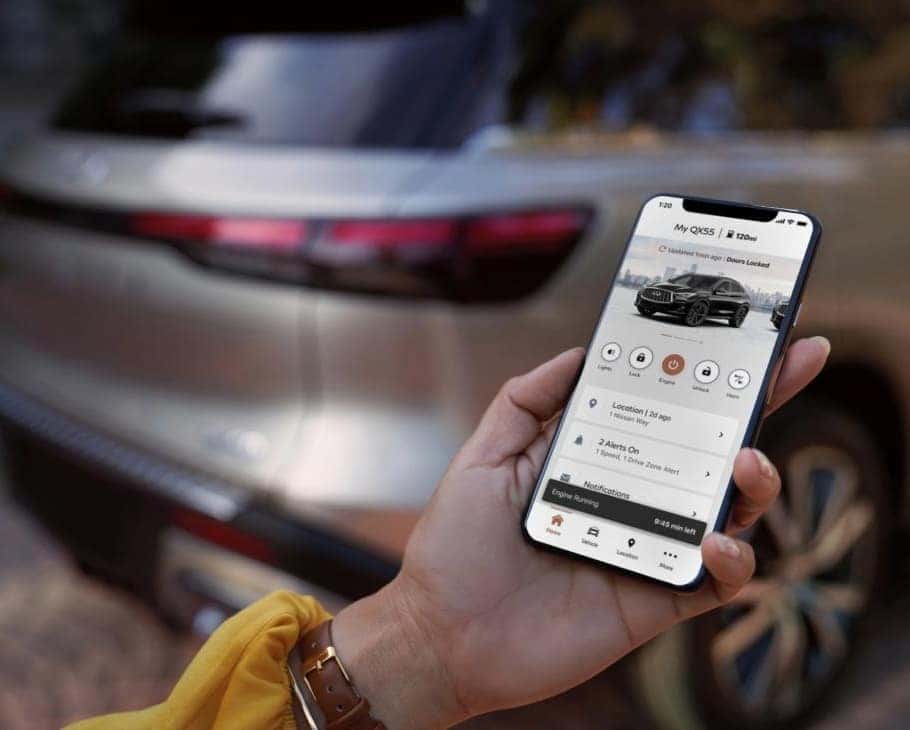
With the MyINFINITI app, you can enjoy a new level of luxury and convenience in Ramsey, seamlessly connecting your INFINITI Q70, QX50, or any other model to the world. Elevate your driving experience and stay connected with your INFINITI like never before. Check out our latest INFINITI lease deals and offers.
0 comment(s) so far on Guide: MyINFINITI App Setup & Features